

Odoo is a powerful open-source ERP platform that centralizes business operations—from sales and inventory to accounting and HR into one modular system. Odoo excels at managing complex workflows, but many organizations need to connect it with external tools to achieve true end-to-end automation. That’s where n8n, the extendable workflow automation tool, comes in.
This guide shows you how to integrate Odoo with n8n to automatically generate product descriptions using an OpenAI model.
Prerequisites
Before you begin:
- Create an Odoo server. You can get a server with Odoo pre-configured through Cloudpepper, or self-host on AWS, DigitalOcean, or any cloud provider and manage it through Cloudpepper DevOps platform.
- Install n8n on your server.
- When setting up your Odoo database, click the checkbox to Load demo data and activate the Invoicing and Sales apps.
- Sign up at OpenAI Platform and generate an OpenAI API key.
Set Up an n8n Trigger
An n8n trigger is the node you use to start your workflow to tell n8n when to begin running your automation. You set the trigger as the entry point to fire and pass data into the workflow. You can configure a trigger to run manually, on a schedule, or in response to an external event, meaning it either waits for an event, such as a webhook call, or executes when you click Run. In this guide, you’ll set up a manual trigger.
- Log in to your n8n instance. Replace
192.168.0.1with your server’s public IP address or domain name.http://192.168.0.1:5678 - Access the n8n dashboard.
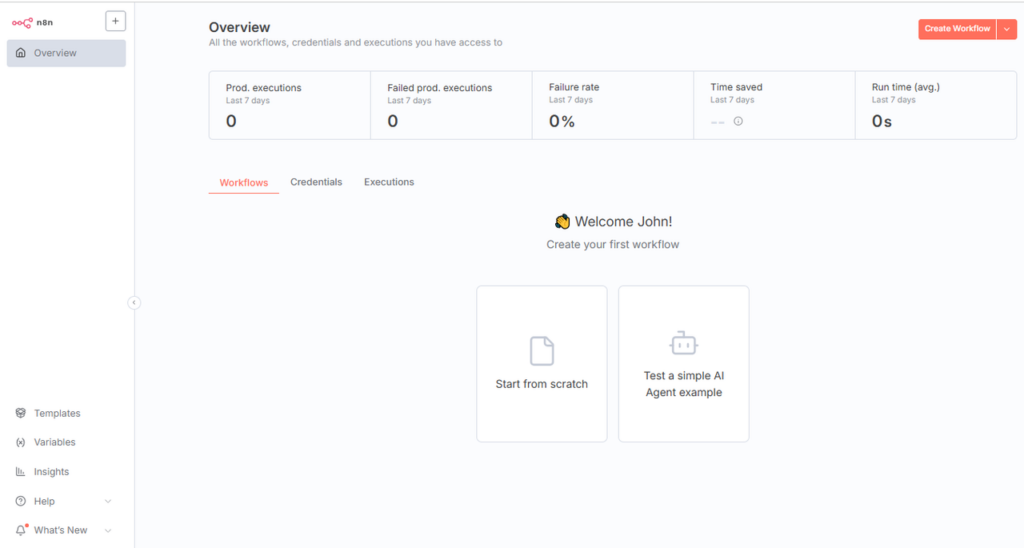
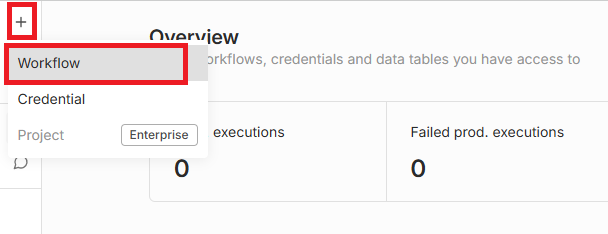
- Press the + at the top right corner and select Workflow to create a new workflow.
- Give your workflow a name. For instance,
Product Description.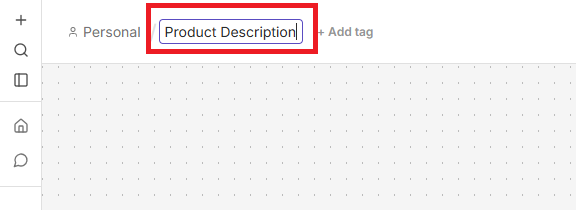
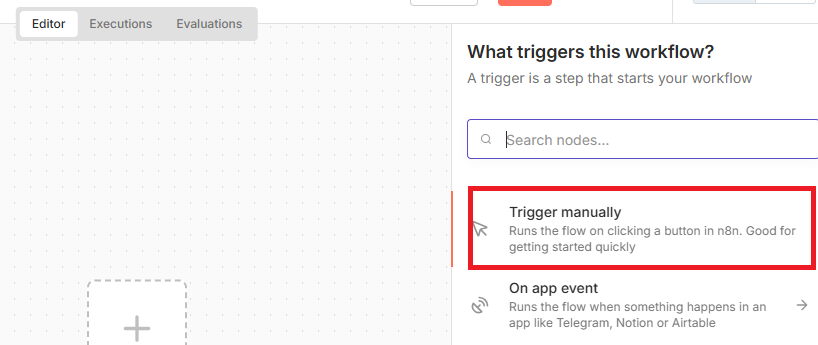
- Click the + icon to create a new workflow entry point. That is, setting a trigger that starts your workflow.
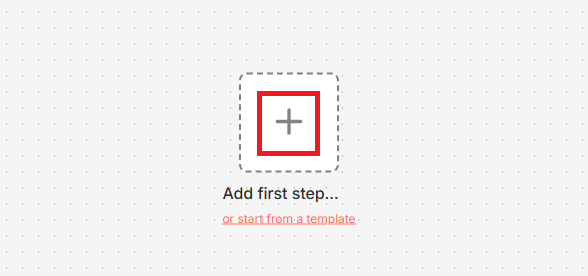
- Select Trigger manually. This means you’ll manually click a button in n8n to start the workflow.
Retrieve Products from Odoo
To fetch your Odoo products from n8n, you’ll add a new Odoo node and choose Get many items. Then, you’ll create and save your Odoo credentials and select an Odoo model as the resource. For this guide, you’ll limit the products to three to minimize resource usage.
- Click the + icon to define what n8n does next in the workflow. Then, in the search bar, type
Odooand select the Odoo option in the search results.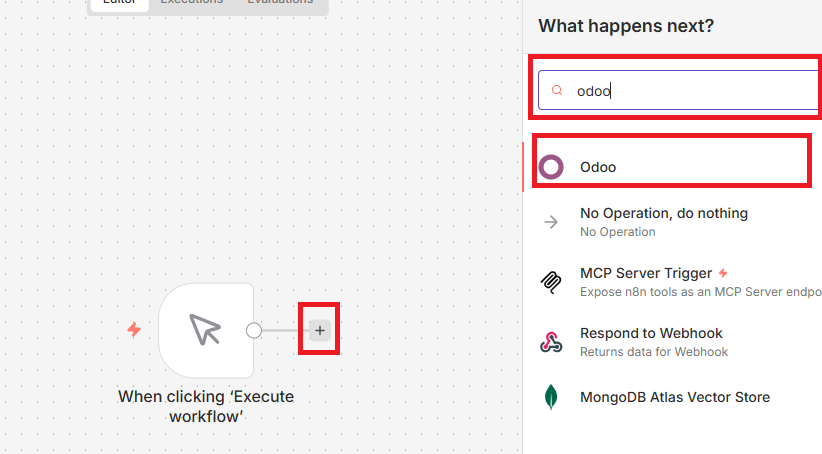
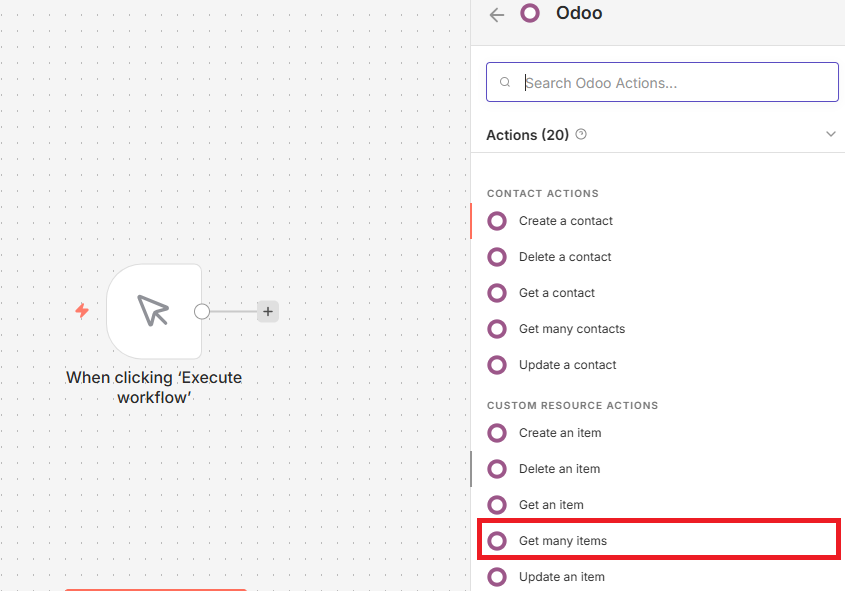
- Select Get many items under CUSTOM RESOURCE OPTIONS.
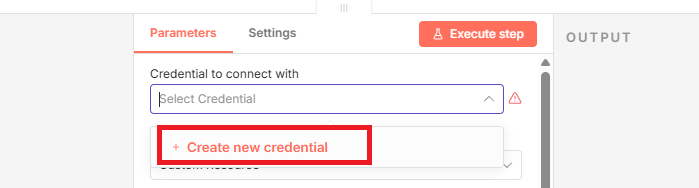
- Open the dropdown box under the Credential to connect with and select Create new credential.
- Fill up your Odoo credentials and click Save. Then, ensure you get the
Connection tested successfullymessage. Then, close the dialog box.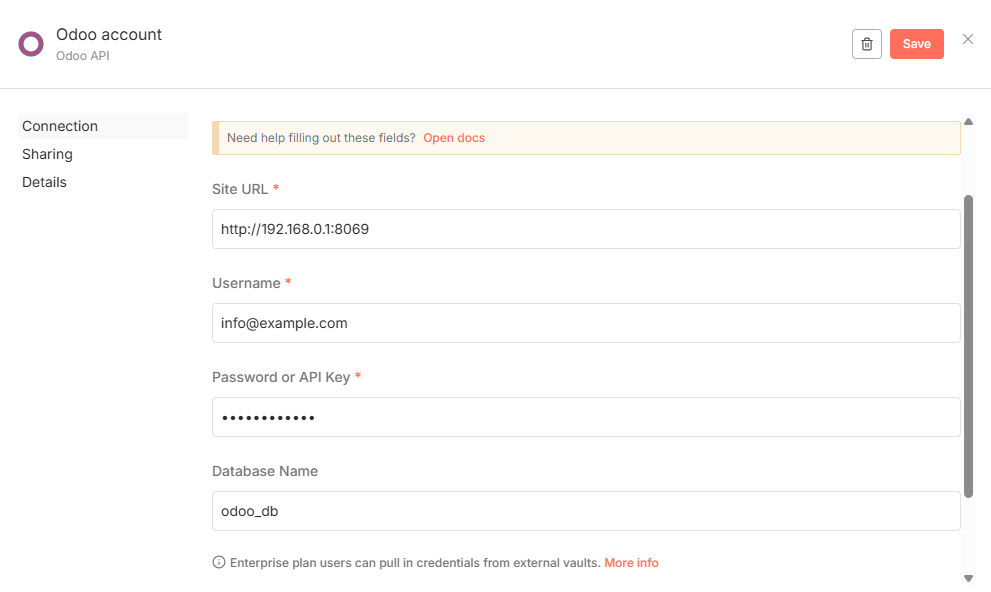
- Enter
productas the search term and select model: product.product under Custom Resource Name or ID.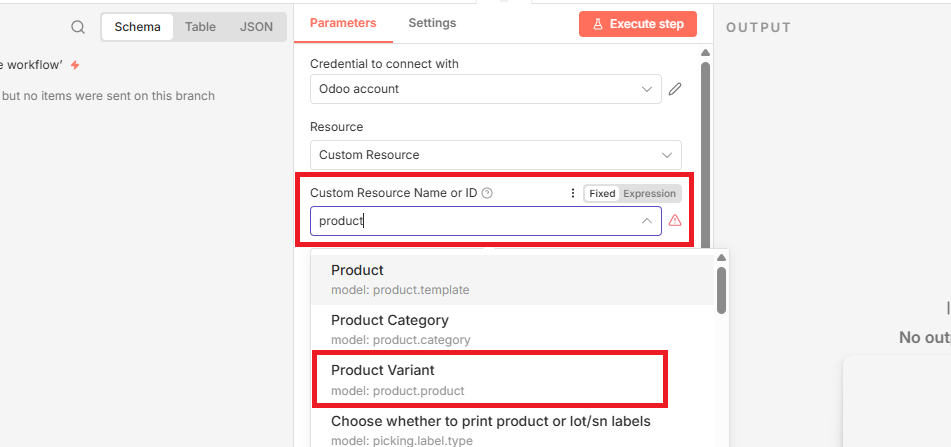
- Enter
3under the limit text box and click Execute step.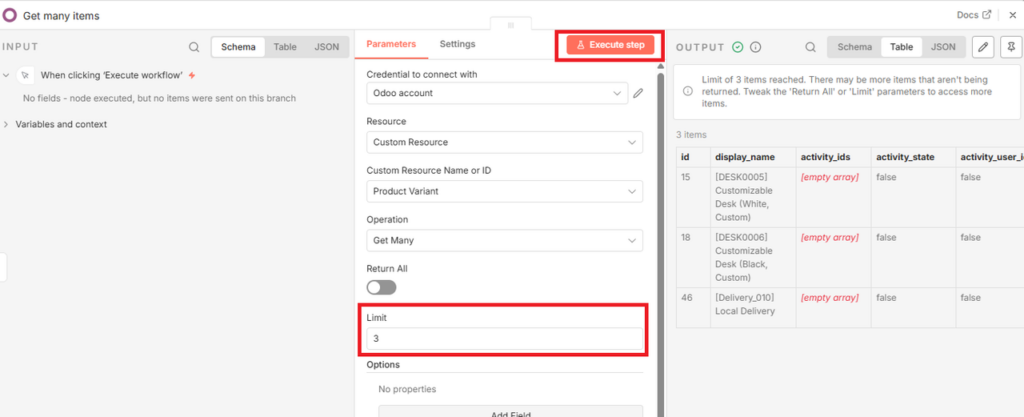 You should now see a list of three items on the right pane. Close the dialog box.
Message AI Model
The final step is deciding how to use the products you pulled from Odoo. Here, you’ll connect the product details to an OpenAI model so that OpenAI can automatically generate polished descriptions. This approach is highly beneficial because it saves you the time and effort of writing each description manually, ensures consistency across your catalog, and reduces the risk of errors or missing details.
- Click the +icon to add a node that messages an AI model.
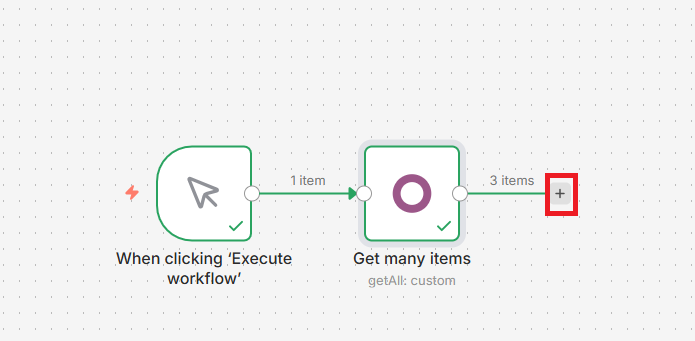
- Enter
OpenAIin the search box and click OpenAI to select the option.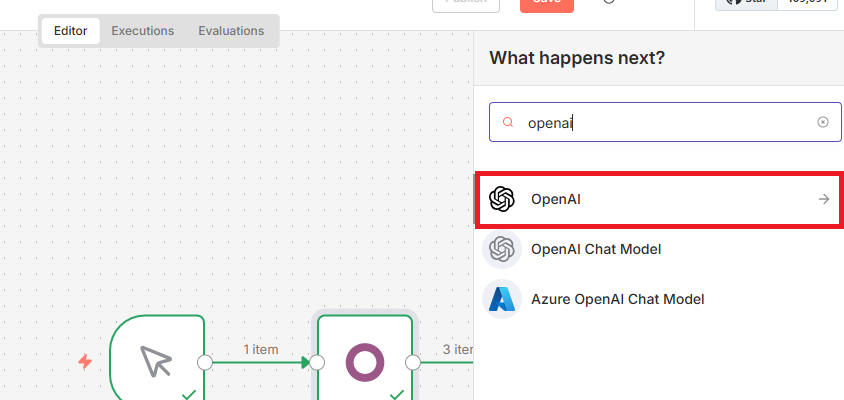
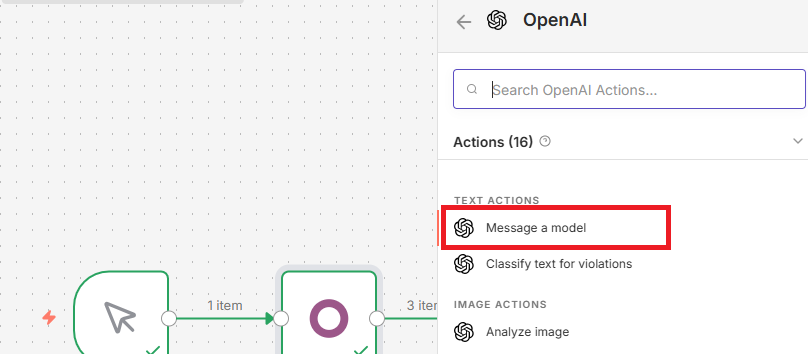
- Select Message a model under TEXT ACTIONS.
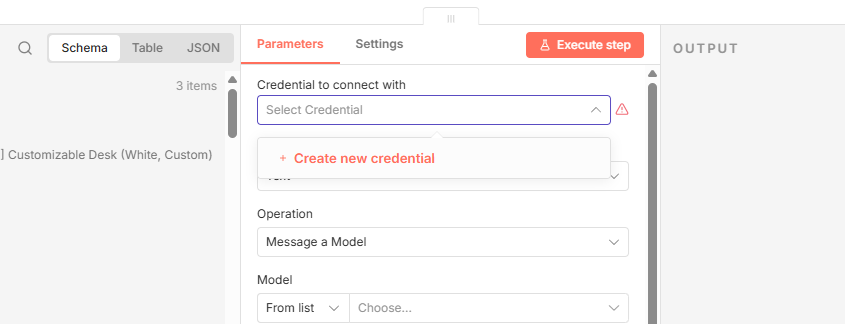
- Select Create new credential under Credentials to connect with.
- Enter your OpenAI API key and click Save. Ensure you get the
Connection tested successfullymessage and then close the dialog box.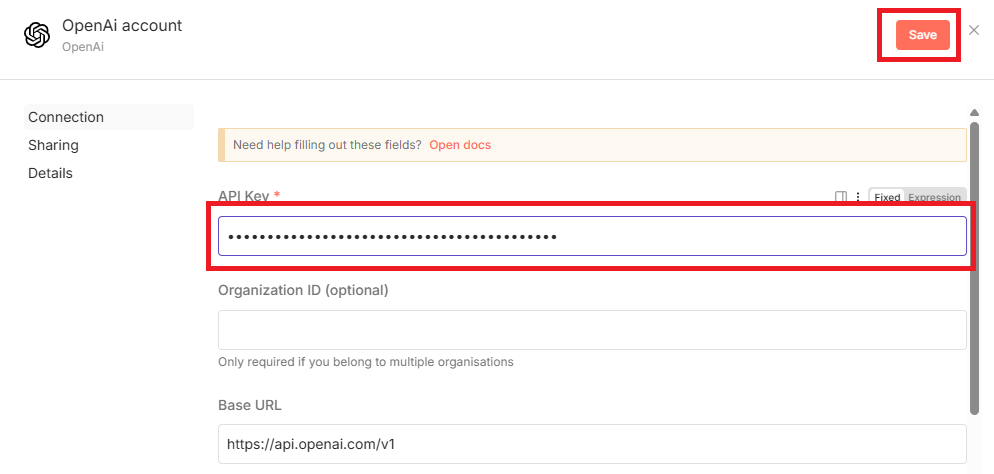
- Choose GPT-4.1-MINI under the model list and enter
Create a product description of the product using the{{ $json.display_name }}as the prompt. Then, click Execute step. You should now see the description of each product in the right pane.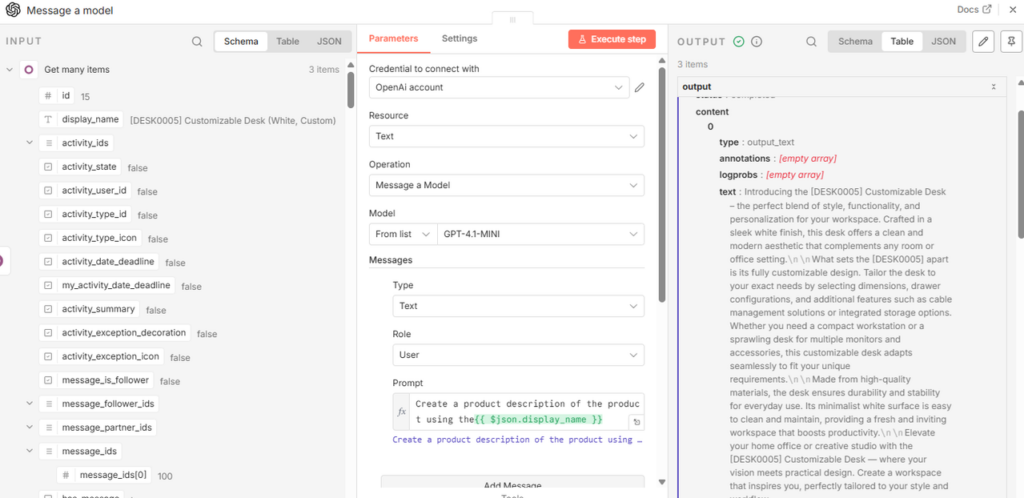
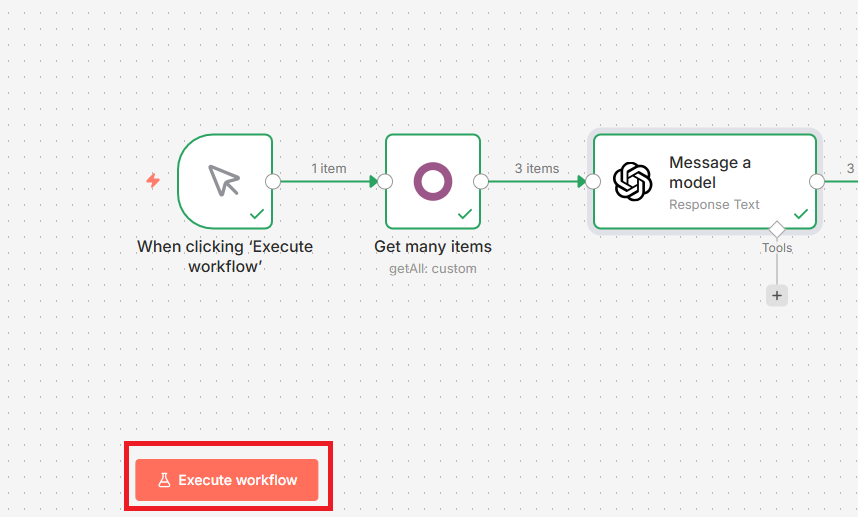
After completing the steps, your workflow is now complete. You can always click Execute workflow to generate descriptions for your Odoo products as required.
Conclusion
In this guide, you integrated Odoo with n8n and OpenAI to automate product descriptions. You set up a manual trigger, pulled product data from Odoo, and connected the product names to an OpenAI model that generates polished, consistent description. This workflow saves time, reduces manual effort, and ensures accuracy, giving you a scalable way to keep your catalog updated.
If you need a managed Odoo environment to build on, Cloudpepper’s Odoo hosting handles the infrastructure so you can focus on automation.
