How to Connect Odoo to the ChatGPT API
Use XML-RPC and the OpenAI API to add invoice summaries, product descriptions, and attendance summaries to Odoo.
The ChatGPT API can add text generation and analysis to Odoo workflows. You can summarize invoices, draft product descriptions, and turn attendance logs into readable notes. This guide uses Odoo’s XML-RPC API with Python and the OpenAI API.
You will set up a Python environment, connect to Odoo, call the OpenAI API, and write generated output back to Odoo records.
Note: This guide requires server access to run Python scripts and custom integrations. If you need Odoo hosting with full SSH access, API support, and automated backups, Cloudpepper provides managed infrastructure that supports advanced customizations like ChatGPT integrations while handling all server maintenance.
Prerequisites
Before you begin:
- Deploy an Ubuntu 24.04 server.
- Install an Odoo instance via Docker. Follow our How to Install Odoo with Docker on Ubuntu 24.04 guide if you need help with this step. When you set up a new Odoo database, click the checkbox to Load demo data. Then, activate the following Apps when Odoo deploys:
- Invoicing
- Sales
- Attendances
- Sign up at OpenAI Platform and generate an OpenAI API key.
Create a Python Virtual Environment
A virtual environment keeps your Python packages separate from the system. It avoids version conflicts and makes the integration easier to move between machines. Follow the steps below to create the virtual environment.
-
SSH to your server and update the package information index.
Terminal window $ sudo apt update -
Install Python virtual environment tools.
Terminal window $ sudo apt install -y python3-venv python3-pip -
Create a new
odoo-openai-integrationdirectory for your ChatGPT integration.Terminal window $ mkdir ~/odoo-openai-integration -
Switch to the new directory.
Terminal window $ cd ~/odoo-openai-integration -
Create a Python virtual environment:
Terminal window $ python3 -m venv venv -
Activate the virtual environment:
Terminal window $ source venv/bin/activate(venv)should now appear at the beginning of your terminal prompt, indicating the virtual environment is active. -
Upgrade
pip, the official package installer for Python and install basic dependencies.Terminal window $ pip install --upgrade pip$ pip install wheel setuptools -
Install the
openaiPython package usingpip.Terminal window $ pip install openai
Connect Odoo to ChatGPT API with XML-RPC
In Python, the XML-RPC library lets your code communicate with remote servers using the XML-RPC protocol. Odoo exposes its API over XML-RPC, so xmlrpc.client can log in, query models, and create, read, update, or delete records in an Odoo database. The examples below show three practical ways to use the integration.
To test the samples, use the correct credentials for the ChatGPT API and Odoo.
url = "YOUR_ODOO_INSTANCE_URL"db = "YOUR_ODOO_INSTANCE_DB_NAME"username = "YOUR_ODOO_INSTANCE_USERNAME"password = "YOUR_ODOO_INSTANCE_PASSWORD"open_ai_api_key = "YOUR_OPEN_AI_API_KEY"
Invoice Summary Generator
An invoice summary generator pulls key details from Odoo invoices into a short report. Instead of reviewing each invoice line by line, you can extract the customer, total, and other fields you care about.
-
Create a new
invoice_summary_generator.pyfile.Terminal window $ nano invoice_summary_generator.py -
Enter the following information into the
invoice_summary_generator.pyfile.import xmlrpc.clientfrom openai import OpenAIurl = "YOUR_ODOO_INSTANCE_URL"db = "YOUR_ODOO_INSTANCE_DB_NAME"username = "YOUR_ODOO_INSTANCE_USERNAME"password = "YOUR_ODOO_INSTANCE_PASSWORD"open_ai_api_key = "YOUR_OPEN_AI_API_KEY"common = xmlrpc.client.ServerProxy(f"{url}/xmlrpc/2/common")uid = common.authenticate(db, username, password, {})models = xmlrpc.client.ServerProxy(f"{url}/xmlrpc/2/object")invoices = models.execute_kw(db, uid, password,'account.move', 'search_read',[[['move_type', '=', 'out_invoice']]],{'fields': ['name', 'partner_id', 'amount_total'], 'limit': 3})client = OpenAI(api_key=open_ai_api_key)for inv in invoices:prompt = f"Summarize this invoice: {inv}"response = client.chat.completions.create(model="gpt-4.1-mini",messages=[{"role": "user", "content": prompt}])print(response.choices[0].message.content) -
Save and close the file. This code connects to an Odoo database via XML-RPC, retrieves three invoices, sends the invoices to the ChatGPT API to generate text summaries, and prints those summaries.
-
Run the
invoice_summary_generator.pyfile. The'limit': 3clause tells your script to only summarize three records but you may adjust this value as needed.Terminal window $ python invoice_summary_generator.pyOutput:
Invoice INV/2025/00008 is issued to LightsUp (partner ID 13) with a total amount of 750.0.The invoice INV/2025/00008 is for the customer LightsUp (ID: 13) with a total amount of $750.00.The invoice INV/2025/00002 is issued to Deco Addict (partner ID 9) with a total amount of 41,750.00.
Running ChatGPT Integrations in Production: Custom Python scripts require ongoing server management, security updates, and monitoring. Cloudpepper’s managed Odoo hosting provides full server access for custom integrations while automating backups, updates, and infrastructure maintenance. Try Cloudpepper free for 3 days with managed servers or 14 days with your own infrastructure.
Product Description Generator
A product description generator creates consistent descriptions for catalog items. Instead of writing every description manually, the script pulls product attributes from Odoo and writes a draft back to the product record. For a no-code approach to the same task using a visual workflow builder, see How to Integrate Odoo with n8n.
-
Create a new
product_description_generator.pyfile.Terminal window $ nano product_description_generator.py -
Enter the following information into the
product_description_generator.pyfile.import xmlrpc.clientfrom openai import OpenAIurl = "YOUR_ODOO_INSTANCE_URL"db = "YOUR_ODOO_INSTANCE_DB_NAME"username = "YOUR_ODOO_INSTANCE_USERNAME"password = "YOUR_ODOO_INSTANCE_PASSWORD"open_ai_api_key = "YOUR_OPEN_AI_API_KEY"common = xmlrpc.client.ServerProxy(f"{url}/xmlrpc/2/common")uid = common.authenticate(db, username, password, {})models = xmlrpc.client.ServerProxy(f"{url}/xmlrpc/2/object")products = models.execute_kw(db, uid, password,'product.product', 'search_read',[[]],{'fields': ['id', 'name', 'default_code', 'list_price'], 'limit': 3})client = OpenAI(api_key=open_ai_api_key)for prod in products:prompt = (f"Generate a clear product description for this item:\n"f"Name: {prod['name']}\n"f"Code: {prod['default_code']}\n"f"Price: {prod['list_price']}")response = client.chat.completions.create(model="gpt-4.1-mini",messages=[{"role": "user", "content": prompt}])description = response.choices[0].message.content.strip()models.execute_kw(db, uid, password,'product.product', 'write',[[prod['id']], {'description_sale': description}])print(f"Updated Product: {prod['name']}")print("New Description:", description)print("------") -
Save and close the file. This code connects to an Odoo database via XML-RPC, retrieves three product records, uses the ChatGPT API to generate descriptions for each one, updates those descriptions back into Odoo, and prints the results.
-
Run the
product_description_generator.pyfile.Terminal window $ python product_description_generator.pyOutput:
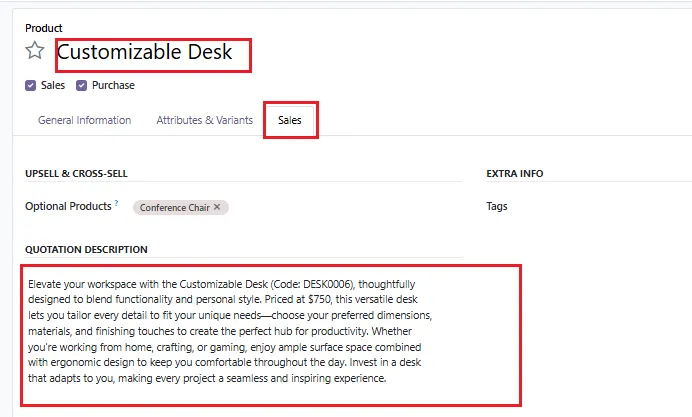
Updated Product: Customizable DeskNew Description: Customizable Desk (DESK0005), priced at $750.00. A configurable desk with adjustable options and modular storage for office or home workspaces.------Updated Product: Customizable DeskNew Description: Customizable Desk (DESK0006), priced at $750.00. A practical desk option for teams that need a configurable workspace with reliable surface area and storage.------Updated Product: Local DeliveryNew Description: Local Delivery (Delivery_010), priced at $10.00. A local delivery service for orders that need direct fulfillment within the service area.------ -
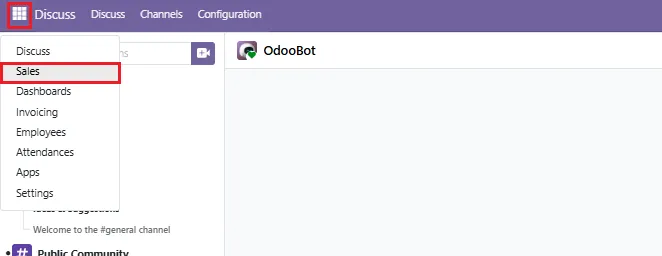
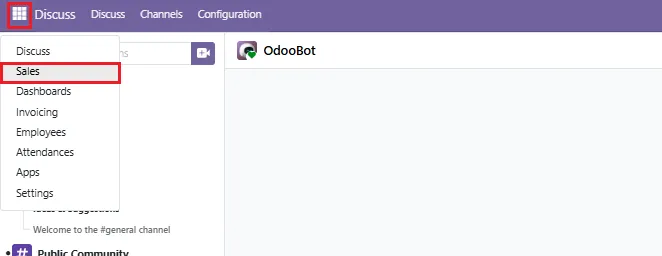
Log in to the Odoo dashboard. Then navigate to the Sales APP.
-
Navigate to Products and select Products.

-
Select any product that you updated using the Python script. Then, click the Sales tab to view the updated description.
Employees Attendance Summary Generator
An employee attendance summary generator takes check-in and check-out records from Odoo and produces a short note for each work session. This can make attendance records easier to review before payroll or reporting.
-
Create a new
employee_attendance_summary_generator.pyfile.Terminal window $ nano employee_attendance_summary_generator.py -
Enter the following information into the
employee_attendance_summary_generator.py.import xmlrpc.clientfrom openai import OpenAIurl = "YOUR_ODOO_INSTANCE_URL"db = "YOUR_ODOO_INSTANCE_DB_NAME"username = "YOUR_ODOO_INSTANCE_USERNAME"password = "YOUR_ODOO_INSTANCE_PASSWORD"open_ai_api_key = "YOUR_OPEN_AI_API_KEY"common = xmlrpc.client.ServerProxy(f"{url}/xmlrpc/2/common")uid = common.authenticate(db, username, password, {})models = xmlrpc.client.ServerProxy(f"{url}/xmlrpc/2/object")attendances = models.execute_kw(db, uid, password,'hr.attendance', 'search_read',[[]],{'fields': ['employee_id', 'check_in', 'check_out'], 'limit': 5})client = OpenAI(api_key=open_ai_api_key)for att in attendances:employee = att['employee_id'][1] if att['employee_id'] else "Unknown"prompt = (f"Summarize this attendance record:\n"f"Employee: {employee}\n"f"Check-in: {att['check_in']}\n"f"Check-out: {att['check_out']}")response = client.chat.completions.create(model="gpt-4.1-mini",messages=[{"role": "user", "content": prompt}])print(f"Employee: {employee}")print("Summary:", response.choices[0].message.content)print("------") -
Save and close the file. This code connects to an Odoo database via XML-RPC, retrieves a few employee attendance records, sends each record to the ChatGPT API to generate a text summary, and then prints the employee name along with the AI-generated summary.
-
Run the
employee_attendance_summary_generator.pyfile.Terminal window $ python employee_attendance_summary_generator.pyOutput:
Employee: Abigail PetersonSummary: Employee Abigail Peterson checked in on December 29, 2025, at 03:41 AM and checked out the same day at 07:11 AM, working a total of 3 hours and 30 minutes.------Employee: Anita OliverSummary: Anita Oliver checked in on December 29, 2025, at 12:41 AM and checked out on the same day at 5:41 AM.------Employee: Jennie FletcherSummary: Jennie Fletcher checked in on December 28, 2025, at 4:41 PM and checked out on December 29, 2025, at 4:41 AM, indicating a 12-hour work period overnight.------Employee: Anita OliverSummary: Anita Oliver checked in on December 28, 2025, at 12:41 AM and checked out on December 29, 2025, at 12:41 AM, indicating a 24-hour attendance period.------Employee: Mitchell AdminSummary: Employee Mitchell Admin checked in at 13:02:58 and checked out at 18:09:22 on November 28, 2025.------
Conclusion
You now have a working pattern for connecting Odoo to the ChatGPT API with Python and XML-RPC. From here, you can adapt the same approach for invoice notes, product drafts, attendance summaries, CRM notes, or other controlled automation inside Odoo. To get the best performance out of your Odoo database as it handles these workloads, review our Odoo and PostgreSQL performance tuning guide.
Always ensure that AI-generated outputs are tested for accuracy and appropriateness before deploying them in production, particularly for customer-facing applications.
Running this in production: Custom integrations need reliable hosting, full server access, backups, and monitoring. Cloudpepper provides managed Odoo hosting with SSH access, API support, and zero vendor lock-in. Start your free trial today: 3 days with included servers or 14 days when connecting your own infrastructure.