Download Odoo Backups (Database & Files)
Introduction
Section titled “Introduction”Cloudpepper allows you to download a backup of your Odoo instance on the fly, at a high speed.
If you need to download the most recent version of your database (without creating a backup first), you can refer to our Export Database (Advanced) guide. However, this method is not recommended, as it requires enabling list_db, which can pose a security risk.
Requirements
Section titled “Requirements”Before starting, make sure a backup of your instance exists. You can create one manually or rely on your scheduled backups.
Step 1. Access the Backups section
Section titled “Step 1. Access the Backups section”There are two ways to access backups of your Odoo instance:
- From the main Backups page : View and download all backups across your instances.
- From your instance’s Backups tab : See and download backups specific to the selected instance.
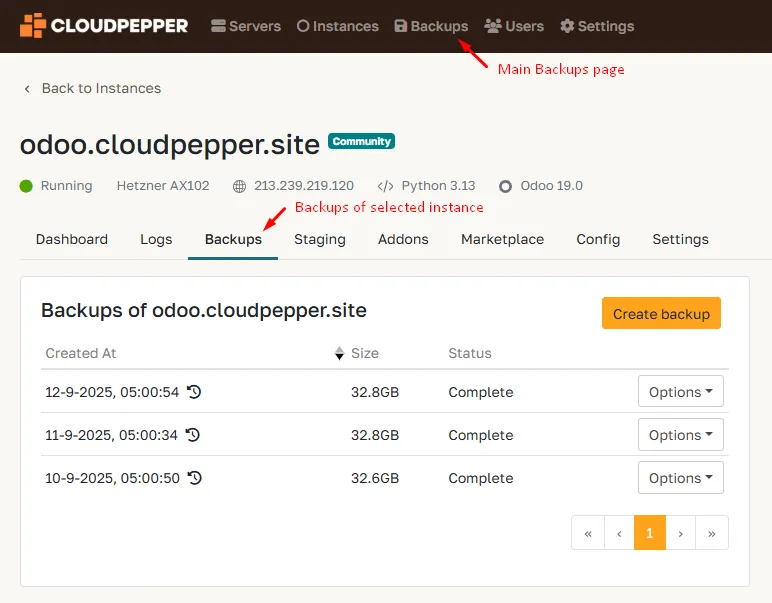
Two ways to find your Backups
Step 2. Download a backup
Section titled “Step 2. Download a backup”Locate the backup you want to download, then click Options and select Download. The download will begin immediately. It contains both your database and filestore.
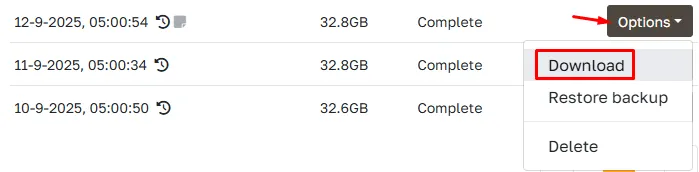
Use the Options menu to download your backup.
Advanced: Rebuild an importable dump from S3/GCS/Azure backup files
Section titled “Advanced: Rebuild an importable dump from S3/GCS/Azure backup files”If your backups are stored in your own backup provider (AWS S3, Google Cloud Storage, Azure Blob, SFTP), you may notice the backup is stored as multiple files instead of a single .dump / filestore folder. This is expected: Cloudpepper stores backups in chunks for reliability and fast uploads/downloads.
1) Download one backup folder locally
Section titled “1) Download one backup folder locally”Download the full backup folder (UUID/GUID) from your provider to a local machine. (Use your provider tool: aws s3 sync, gsutil, azcopy, or an SFTP client.)
2) Rebuild the database dump (importable)
Section titled “2) Rebuild the database dump (importable)”Inside the backup folder, combine the database chunks:
cat sql/* > backup.dumpThe resulting backup.dump is a pg_dump custom format file. Restore it with pg_restore.
3) (Optional) Rebuild filestore and extra-addons
Section titled “3) (Optional) Rebuild filestore and extra-addons”cat filestore/* > filestore.tar.gzcat extra-addons/* > addons.tar.gz4) Restore locally (example)
Section titled “4) Restore locally (example)”createdb mydbpg_restore -d mydb backup.dumpIf you need a plain SQL export (instead of custom format), convert it:
pg_restore -f backup.sql backup.dump5) Restore the filestore (for a working Odoo clone)
Section titled “5) Restore the filestore (for a working Odoo clone)”Extract the filestore archive into your Odoo filestore directory for that database.
Typical paths:
- Odoo user home:
~/.local/share/Odoo/filestore/<db_name> - Debian package installs often use:
/var/lib/odoo/.local/share/Odoo/filestore/<db_name>
Example:
mkdir -p ~/.local/share/Odoo/filestore/mydbtar -xzf filestore.tar.gz -C ~/.local/share/Odoo/filestore/mydbTip: If your extracted files end up nested one level too deep (e.g. mydb/filestore/...), remove that extra folder level and extract again.
How do I match the bucket folder (UUID) to the backup in Cloudpepper?
Backup folder UUIDs are ordered so older backups sort first and newer backups last. If you have the UUID from storage, paste it into the Cloudpepper backups search to find it in the UI. (UI → bucket reverse lookup isn’t available yet.)