Migrate a large Odoo instance (>5GB)
Introduction
Section titled “Introduction”If your database is over 5GB, it is too large to upload in the Cloudpepper Backups section. Use the following procedure to migrate your database. For databases under 5GB, use the standard on-premises migration guide instead.
Requirements
Section titled “Requirements”- A server provisioned by Cloudpepper (which will be hosting your Odoo instance)
- SSH access to the server provisioned by Cloudpepper. If needed, add your SSH key using the Cloudpepper dashboard.
Step 1. Create an Odoo instance
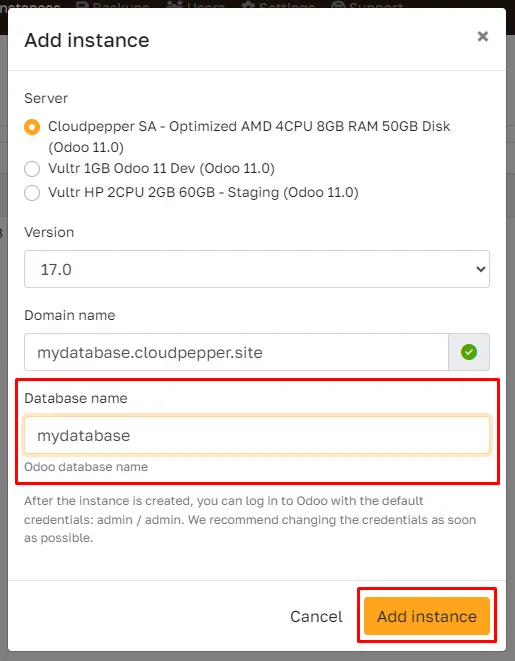
Section titled “Step 1. Create an Odoo instance”Create an new Odoo instance on the server provisioned by Cloudpepper. Under Advanced Options, choose a unique database name. eg: mydatabase and click Add instance.
Step 2. Overwrite the database of your new instance
Section titled “Step 2. Overwrite the database of your new instance”Copy the zip backup to your server through scp, sftp or rsync. Example command using scp below. Ensure to replace 1.2.3.4with the IP address of your provisioned server.
scp /path/to/backup.zip root@1.2.3.4:backup.zipThe following commands are to be executed on the SSH server. Ensure to replace mydatabase for all occurrences with the database name you chose when creating your Odoo instance.
sudo systemctl stop odona-mydatabaseunzip backup.ziprm -f backup.zipsudo -u postgres psql -c "DROP DATABASE \"mydatabase\";"sudo -u odoo psql -d postgres -c "CREATE DATABASE \"mydatabase\" ENCODING 'unicode' LC_COLLATE 'C.UTF-8' LC_CTYPE 'C.UTF-8' TEMPLATE template0;"cat dump.sql | sudo -u odoo psql -d mydatabaserm -f dump.sqlsudo rm -fr /var/lib/odoo/.local/share/Odoo/filestore/mydatabasesudo mv filestore /var/lib/odoo/.local/share/Odoo/filestore/mydatabasesudo chown -R odoo:odoo /var/lib/odoo/.local/share/Odoo/filestore/mydatabasesudo systemctl restart odona-mydatabase